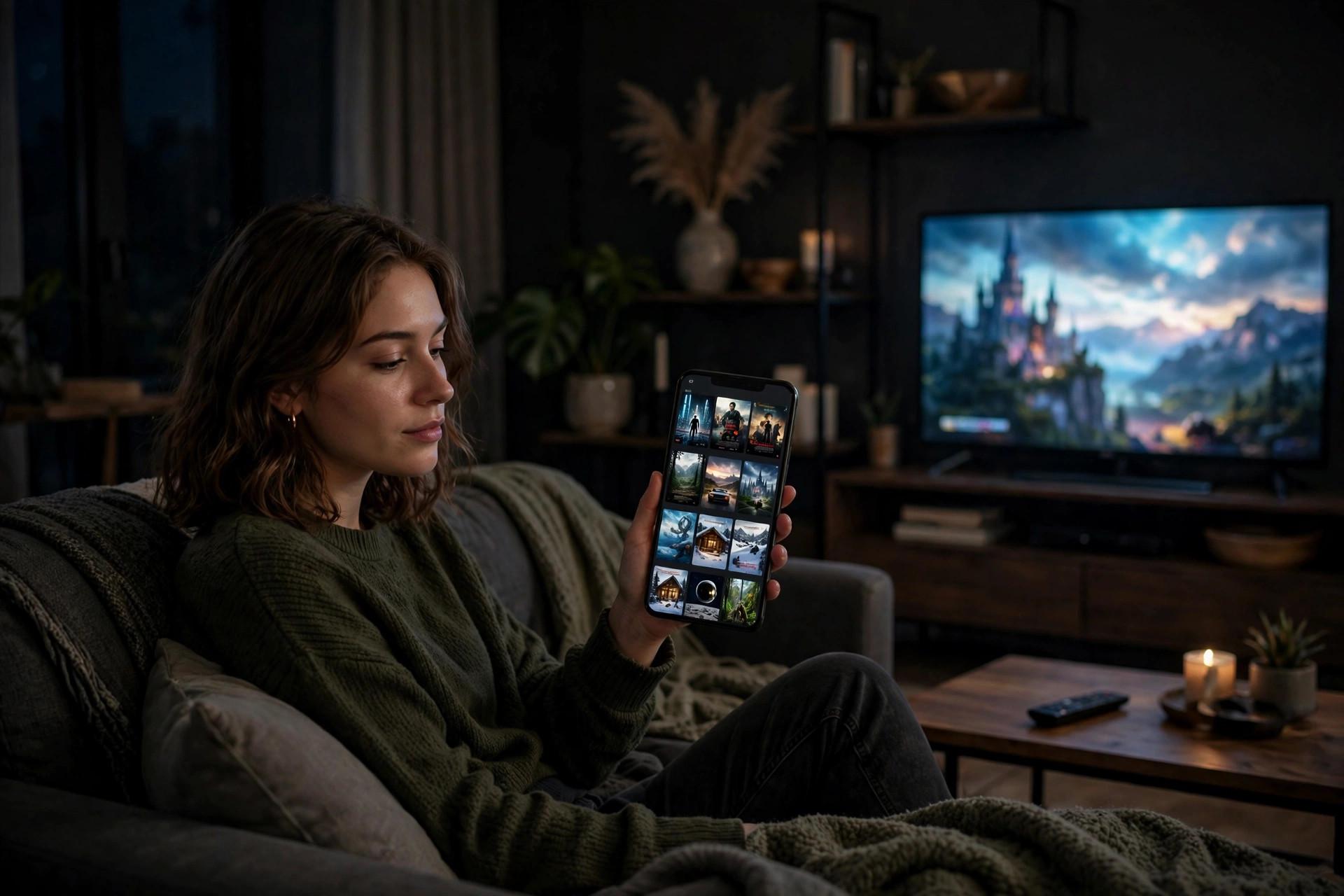
IPTV Smarters Pro is the most widely used IPTV player in Australia, and the reason is that it runs on everything: Firestick, Android phones and tablets, iPhones and iPads, Android TV, Windows and Mac. If your household has a mix of devices — a Firestick in the lounge, an iPhone in the pocket, a Windows laptop in the study — Smarters is the one app that covers all of them with the same login. It is not as pretty as TiviMate on Android TV, but it is more flexible, and for most people that matters more.
The app itself is free, with a paid Pro version that removes ads and adds a few features. The service — the channels, the movies, the sport — comes from 4K Media Australia, not from the app. That distinction matters when something goes wrong: if a channel does not load, the fix is usually the playlist or the connection, not the app. Keep the two apart in your head and the troubleshooting gets much shorter. The best IPTV Australia guide explains what the subscription includes.
IPTV Smarters Pro Australia Setup: Install on Each Device
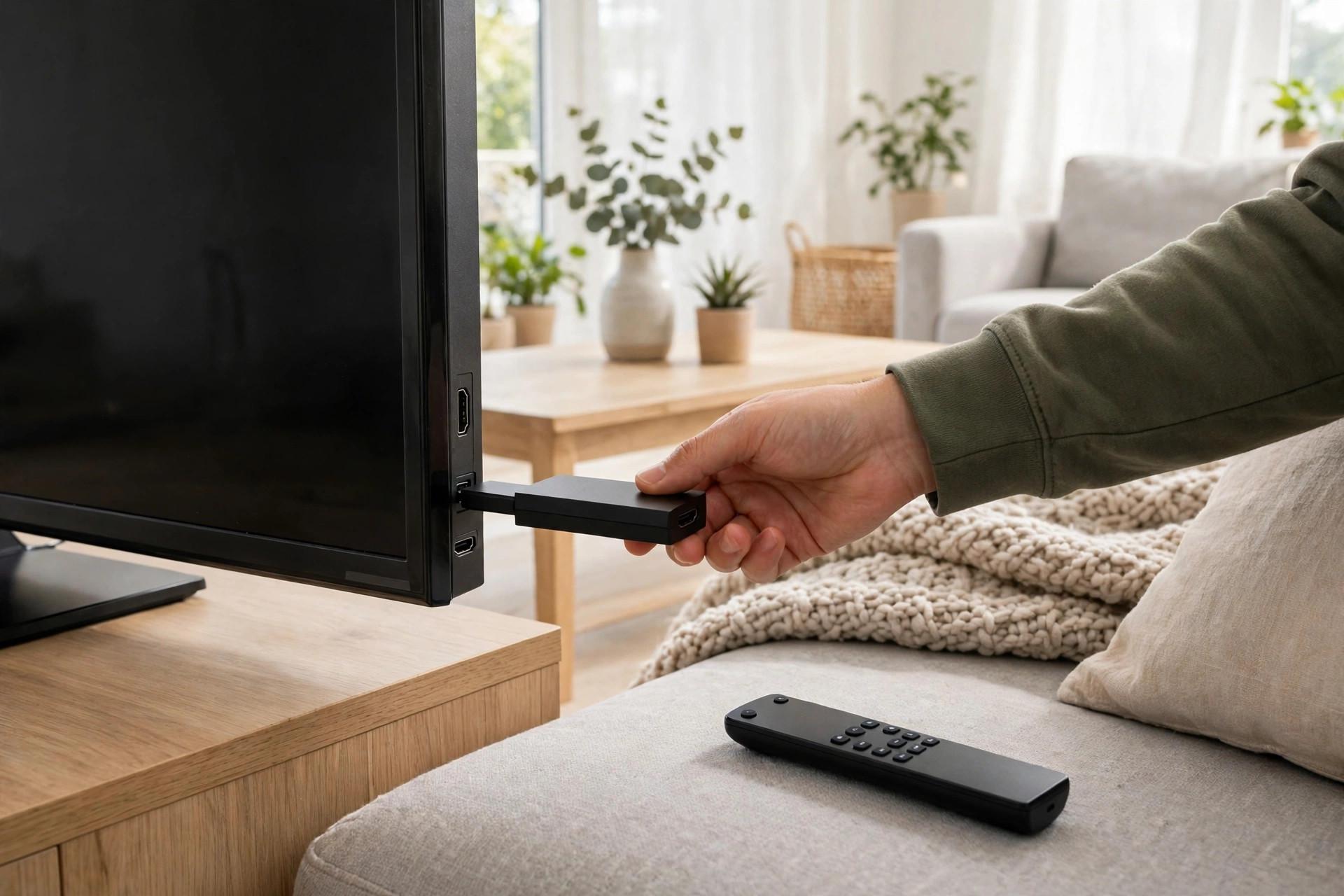
On Android phones and tablets, install IPTV Smarters Pro from Google Play. On iPhone and iPad, install it from the App Store — the iOS version is the same app with the same login. On Windows and Mac, download it from the Smarters website or use the Microsoft Store version. On a Firestick, it is not in the Amazon Appstore, so you install Downloader first and sideload it — the Firestick setup guide covers the Downloader steps. On a Samsung or LG smart TV, Smarters is not available, and IBO Player is the answer instead — see the smart TV guide.
- Android / iPhone: Google Play or App Store, search IPTV Smarters Pro, install.
- Windows / Mac: download from the Smarters site, install, open.
- Firestick: install Downloader, sideload the Smarters APK, open.
- Android TV: Google Play, or sideload if your TV's store does not list it.
IPTV Smarters Pro Australia Setup: The Xtream Codes Login
Open the app and choose Login with Xtream Codes API — not the M3U playlist option, and not the single-stream option. The three fields are the username, the password and the server URL, all from the WhatsApp message 4K Media Australia sends after the trial or the subscription starts. The server URL needs the full address, including the http:// or https:// prefix and the port number. Type it carefully or copy and paste from WhatsApp on the same phone, which is the easiest way on mobile. Tap Add User, and the app loads the channels, the movies, the series and the EPG. The first load takes a few minutes; the next loads are fast because the app caches the list.
If the login fails, the cause is almost always one of three things: the URL is missing the port, the password has a capital letter in the wrong place, or the trial has not been activated yet. Check the URL first, then the password, then message support on WhatsApp and ask whether the line is active. Do not reinstall the app first — reinstalling fixes almost nothing and wastes the ten minutes you spent logging in.
Using Smarters Day to Day
The home screen has four sections: Live TV, Movies, Series and the EPG. Live TV is the channel list, grouped by country and by sport. Movies and Series are the on-demand library — 185,000 movies and 49,000 series on Premium — with search and a watchlist. The EPG is the guide. The features worth learning are the favourites (long-press a channel), the catch-up on the channels that support it, and the multi-screen on tablets, which lets you watch two channels at once. The player settings have a buffer option: set it to Large on Wi-Fi and the small dips that cause a freeze in the last quarter mostly disappear. The buffering fix guide has the rest.
Smarters vs TiviMate: Which One for You?
If your main screen is Android TV or a Shield, TiviMate is the nicer app — the guide is better and the favourites are faster. If you watch on a phone, an iPhone, a laptop or a mix of all three, Smarters is the better pick, because it is the same app everywhere and the login is the same. Many households run both: TiviMate on the lounge TV, Smarters on the phones. The subscription does not care which player you use, and you can switch players without contacting support — the login details are the same. The TiviMate setup guide covers the other side of the choice.
The feature in Smarters that people discover last is the multi-screen on tablets. On an iPad or an Android tablet, the app lets you watch two channels side by side — the AFL on one half, the NRL on the other — and it is the best way to follow a Saturday afternoon when the two codes overlap. The phone version does not do it well, because the screen is too small, but the tablet version is genuinely useful. The other feature worth learning is the external player option: if the built-in player stutters on your device, Smarters lets you open the stream in VLC or MX Player instead, and on some older phones that fixes a freeze that nothing else would.
The other thing to know about Smarters is the updates. The app updates through the app store like any other, and an update sometimes resets the player settings — the buffer size goes back to Small, the hardware decoder changes, and the picture that was fine on Friday freezes on Saturday. If the picture changes after an update, check the player settings first: buffer back to Large, hardware decoder back on, and restart the app. It takes thirty seconds and it fixes the most common post-update problem. The TiviMate guide covers the other player, and the Firestick guide covers the device most people run Smarters on.
One last note: only download Smarters from the real app stores or the real Smarters website. There are lookalike apps with similar names that charge for a login that should be free, or that bundle a different service. If the app asks you to pay before you can enter your own details, you have the wrong app. The real one lets you log in with the details your provider sent you.
Smarters Pro settings that matter: player, buffer and EPG offset
IPTV Smarters Pro works straight out of the box, and most people never open the settings — which is why the same three settings cause most of the complaints. The first is the player. Smarters Pro lets you choose between its built-in player and an external one like VLC or MX Player, and the built-in player is the right choice for most Australian households because it handles the EPG and the catch-up without leaving the app. The external players are worth trying only when a specific channel stutters in the built-in one, and switching back is one tap. The second setting is the buffer size, buried in the player settings: a larger buffer smooths a shaky connection at the cost of a few seconds when changing channels, and on NBN 50 it is the single most useful change for a household that sees the odd freeze.
The third setting is the EPG time offset, and it is the one that makes the guide show the right times. Smarters Pro reads the EPG data from the playlist, and if the times are shifted by an hour or two, the offset setting corrects it — usually the fix is setting the offset to the Australian time zone rather than the default. The app also lets you choose the EPG source per playlist, and the default source that arrives with the Xtream Codes login is the right one in almost every case. Change the offset, reload the EPG, and check tonight's games before changing anything else. The NBN speed guide explains why the connection rarely needs changing, and the TiviMate guide covers the same settings in the other app.
Multiple playlists, profiles and the family setup
Smarters Pro handles more than one playlist, and that is useful in two situations. The first is a household with two subscriptions — a Premium plan in the lounge and a Basic plan in the kids' room, for example — where each playlist logs in separately and the app switches between them from the profile screen. The second is a reseller testing a customer's playlist before handing it over. Adding a playlist is the same Xtream Codes login each time: a name for the playlist, the username, the password and the server URL from the WhatsApp message. Name each playlist clearly — Lounge Premium, Kids Basic — because two playlists both called IPTV are impossible to tell apart a month later.
Profiles inside one playlist are the lighter version of the same idea. Smarters Pro lets you set a PIN on a profile, which is how households keep the adult categories away from the kids' room without a second subscription. The adult content in Premium is optional and off by default in the sense that it sits in its own locked category, and a PIN on the profile keeps it that way. Set the PIN on the kids' device, favourite the kids' channels on the home screen, and the tablet becomes a safe screen without losing the sport and the movies the adults watch on the lounge TV.
Smarters Pro on Firestick, phone and smart TV
The app behaves differently on each device, and knowing the differences saves a support message. On the Firestick, Smarters Pro is sideloaded through Downloader — install the Downloader app from the Amazon Appstore, then download Smarters Pro via Downloader (ask on WhatsApp for the current code) — and it runs best on the Firestick 4K Max, where the extra memory keeps the EPG smooth. On the phone and tablet, it installs from Google Play or the App Store directly, and it is the best way to watch away from home because the same login works over mobile data. On the Samsung and LG smart TVs, Smarters Pro is not in the app store, and the TV app to use is IBO Player instead — the Samsung and LG guide has those steps.
| Device | Install | Best for |
|---|---|---|
| Firestick 4K Max | Downloader (ask on WhatsApp for the current code) | Lounge TV, EPG, multi-view |
| Android phone/tablet | Google Play | Watching away from home |
| iPhone/iPad | App Store | Second screen, travel |
| Samsung/LG smart TV | Use IBO Player instead | No sideloading needed |
One habit makes the app pleasant on every device: favourite the ten channels the household actually watches, and ignore the other 56,990. The full channel list is impressive on a sales page and useless on a remote control. Favourites turn Smarters Pro from a directory into a television, and the EPG then shows tonight's games on the channels that matter instead of a wall of feeds from countries the house will never watch.
The last setting worth knowing is the one that protects the evenings: the parental PIN. Smarters Pro lets you lock a profile with a four-digit PIN, and the adult categories in Premium sit behind that lock. Set the PIN on the kids' tablet and on the bedroom TV, and the lounge TV can stay open for the adults. The PIN is also the answer to the accidental purchase problem — there are no purchases inside the player, but a locked profile stops small fingers from changing the playlist settings, deleting the favourites, or switching the EPG source to something that takes an hour to undo. Write the PIN down somewhere the adults can find it and the kids cannot, and the setup stays the way you left it.